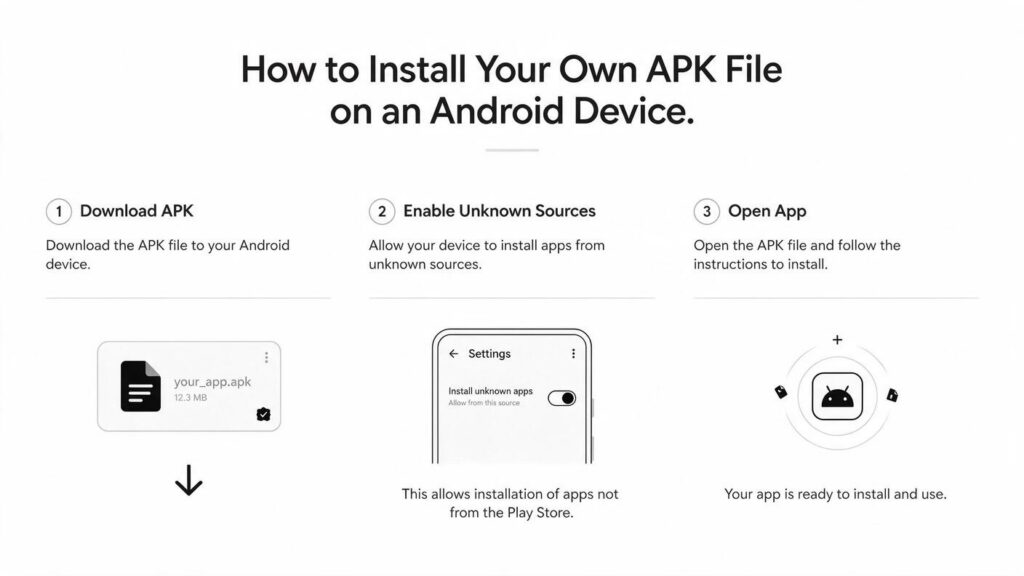
Install a APK on latest Android devices is now very challnaging due to google high security upgrade policy. And in 2026 if you need to install an thard party or your custom build APK file installed on your Android then maybe this guide post will help you lot. So let’s know how you can also install unknown source APK file on your Android today.
In 2026 installing a unknown source APK on Android can be nightmare for those peoples who don’t know how to allow some secutity permission like unknown source, Google Play Sotre protaction etc. And a right guide can help you to overcome from those error so follow the steps from below and you may able to install APK as well.
Is Sideloading Safe on Android?
The Play Store is safer. Google layers checks that make it hard to wreck a phone, while a manual package can still carry real risk if you pick a bad file. That said, people still sideload for F-Droid, Amazon App Store, or titles Play won’t list. You trade those Play protections for freedom. For most people, that’s a fair trade if you trust the source and turn the permission off after.
What is Google Play Protect
Google Play Protect is highly recommended to enable on your Android devices because it helps users protect themselves from malware apps and games. It’s a built-in feature of the Google Play Store app. It scans all the apps installed on your device and rejects the installation if an app or game is highly modified or asks for unnecessary permissions like GPS location, camera access, contact numbers, etc. So, if you are an Android user, then you should use Google Play Protect for extra safety and protection of your privacy.
How to Install APK Files Today
Google moved to per-app install permission at Android 8.0 Oreo. Since then that model still applies on current phones, including a Pixel 8a on Android 16, so you grant the browser or Files by Google, not a global unknown-sources switch. Here’s the thing: the steps can kind of shift a little by brand and software. If you need How to Install APK packages from a trusted file, this is the path that actually works now.
1. Download or Build APK File
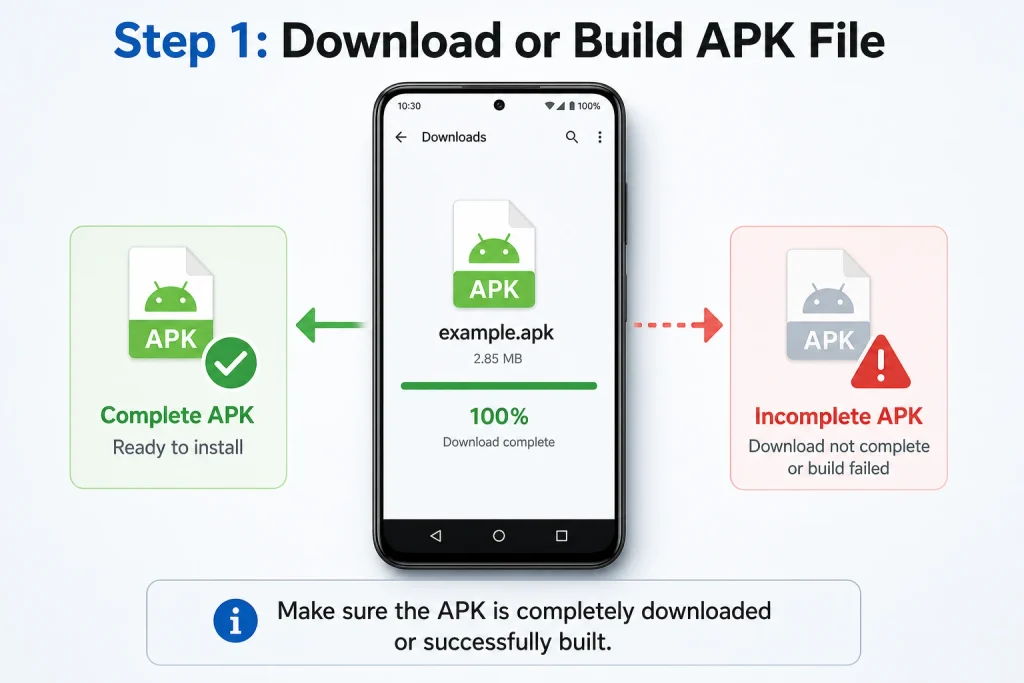
If you want to install your own-built APK or download one from a third-party app store like RelaxModAPK.com or Uptodown.com, then you must follow the manual method. So, download or build your APK file completely and make sure the APK file is completely downloaded or built. A broken file will cause installation errors.
2. Enable Device Permission
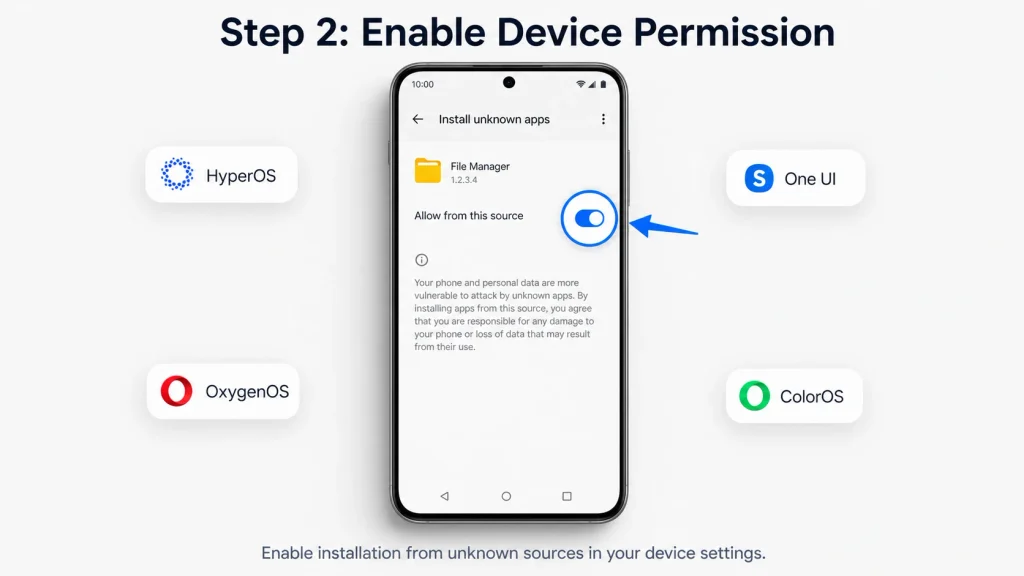
Well, every Android device comes with a different UI style depending on the device brand, like HyperOS, OxygenOS, One UI, ColorOS, etc. And every OS requires you to enable installation from unknown sources in the settings. So, go to Settings and enable installation from unknown sources.
3. Locate the File Via File Manager
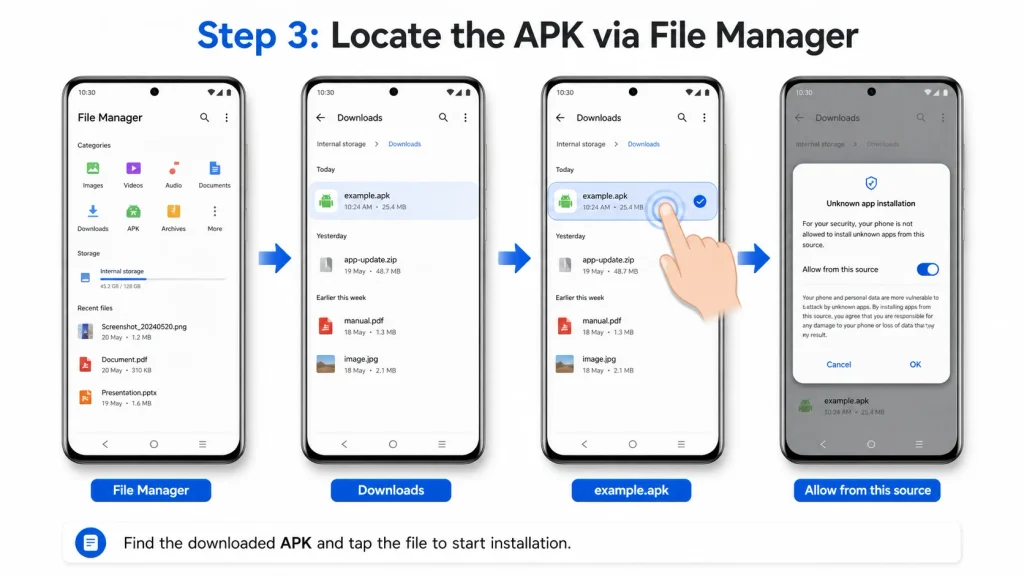
Now, open your device’s file manager and locate the APK file. Tap on the APK file, and it will ask you to enable the “Allow Unknown Sources” option, so you can also enable it from there.
4. Installation Process and Done
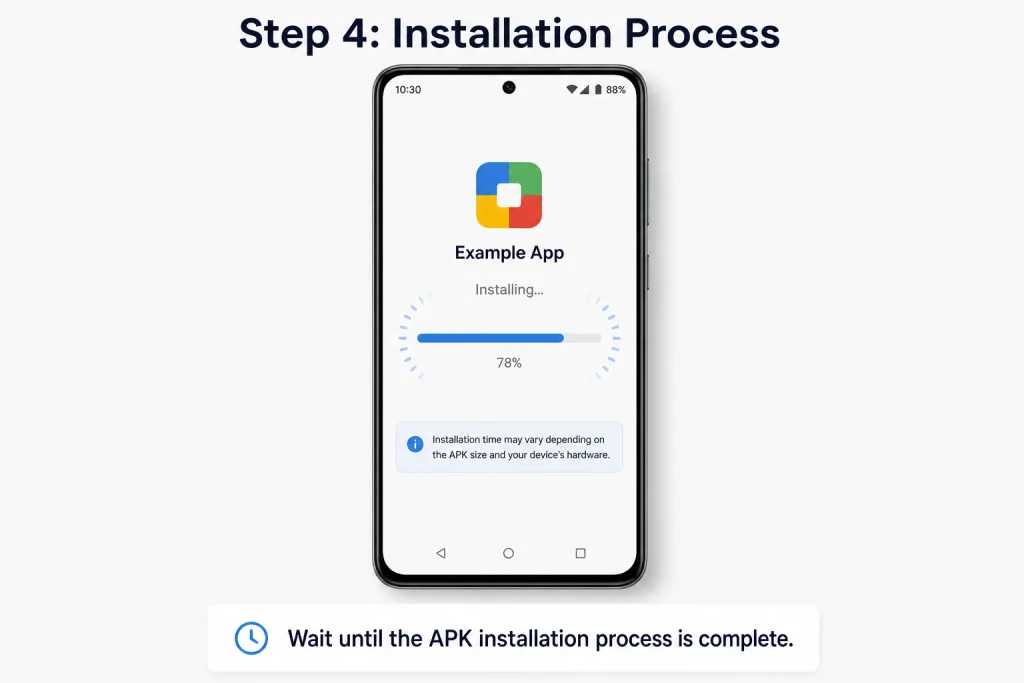
After clicking on the APK file, the APK installation process will start, and it will take some time depending on the APK file size and your device’s hardware capabilities. So, wait until the process is complete.
5. Open The App
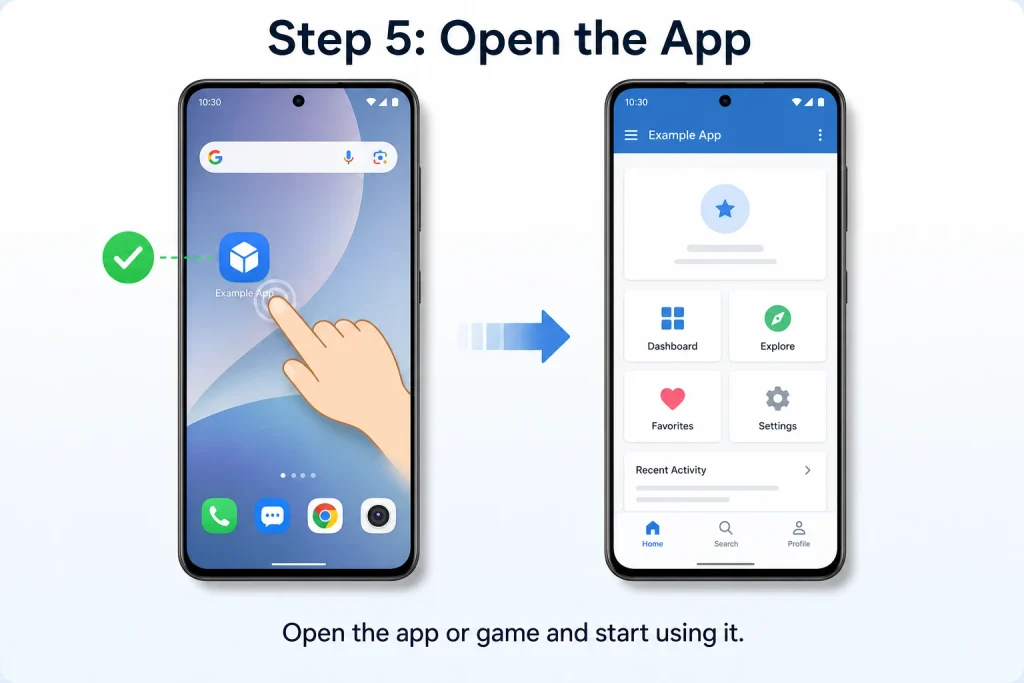
Now, you can open the app or game and access it.
How to Revoke Install Permissions
Revoke the permission so nothing else installs without your knowledge. Most apps like Firefox or Amazon rarely abuse it but you should still switch it off when you’re done. Want to keep extra packages from sneaking in? Use the Install unknown apps list and turn off Allow from this source for that browser. Then follow the taps below.
- Launch the Settings app.
- Go into Apps.
- Tap Special app access.
- Select Install unknown apps.
- Pick the app, like Chrome.
- Toggle off Allow from this source.
Can I Use a Third Party Store?
Third-party stores are the easier ongoing path. Once you install F-Droid or Amazon App Store with the same permission method, you browse, tap Get, and the store handles the rest. You only fight the Settings toggle once. After that, How to Install APK updates from that store is pretty much tap and go. Store packages listed on relaxmodapk.com follow this same one-time setup.
Set Up the Store Once
- Install the store package using the method above.
- Open the store and find an app.
- Tap Get to start the download.
- Hit Continue, then Go To Settings.
- Select Amazon Appstore and enable Allow from this source.
- Return and install the app again.
What Changes on Samsung Phones
The Samsung path is slightly different. You still allow unknown installs, but you get there through Settings, Apps, the three-dot menu, Special access, then Install unknown apps. Toggle only the apps you trust to sideload. What stood out right away was that extra menu tap before the permission list. That’s the whole difference. For most people on Galaxy hardware, this is the only change that matters.
Why the Install Might Fail
The most likely cause is device incompatibility. Some newer phones only run 64-bit packages, and brand-only stores like Samsung’s App Store won’t run on other hardware. Check for another build before you retry. However, a 32-bit leftover will just fail on a 64-bit-only device. If a listing on relaxmodapk.com offers more than one package, pick the one that matches your chipset.
FAQs
No. Most apps work fine on regular Android. Brand stores like Samsung’s App Store need that brand’s hardware, so you can’t drop them on a Pixel and expect a clean install. That’s the limit.
Yes. The process is slightly different on Android TV or Google TV. You still sideload a package, but the screens and permission names won’t match a phone. Keep to that TV path instead of copying phone taps.
It’s probably incompatible, the wrong build, or a 64-bit-only phone fighting an older package. Try another version from the same source before you assume the phone is broken. Then install that file instead.
Not really. You trade Play’s security and polish for freedom. F-Droid shines for open-source apps, and a few catalogs do one job well, but Play still fits Android best overall. Honestly that’s the trade.
On Samsung, open Settings, then Apps, tap the three-dot menu, pick Special access, then Install unknown apps. Toggle the apps you trust. That extra menu is why Galaxy steps don’t match a Pixel.
Conclusion
This is an educational-purpose blog post, and the RelaxModAPK.com team is not responsible if any of your data is lost. Install a third-party APK at your own risk, and allow any permission only after carefully reading the full document and guidelines. We are writing this topic to help users who want to test their APK or install an APK file for educational purposes. And we highly recommend not installing an unknown-source APK on your primary Android phone; instead, use a secondary Android phone to prevent any privacy loss.